





Stay in Touch
Get sneak previews of special offers & upcoming events delivered to your inbox.

Sign in
 Blogs & Forums
 Forums
 Blogs
Blogs

11-11-2019 09:38 PM
How do I darken the screen ?
I don't have 'display settings' when I go to system preferences
11-11-2019 11:08 PM
Sorry, I cannot help you as I had to check Apple's website about an Mac Mini Cube. Never heard of it. Do you have a Mac Mini, is that what you mean? I found no record of a Mac Mini Cube.
You should call Apple tech support, view Apple's YouTube tech support and/or post in their forums if no one chimes in here.
Other resources: OxDaily & MacWorld
"Never argue with a fool. Onlookers may not be able to tell the difference."
11-11-2019 11:36 PM
probably the same thing some places call it a cube. little square.
I found a control called 'night shift' that might make a difference too
11-12-2019 09:09 AM
The Mac Mini is the miniaturized version of the old computer towers. It functions the same way.
I have an iMac and a Mac keyboard. My keyboard's F1 and F2 are the way to darken or lighten the screen. Do you have a similar set up on your keyboard?
11-12-2019 03:52 PM
I've got a F! and F2 on my keyboard. Held them down and nothing happened
do you do something else besides that ?
11-12-2019 04:00 PM
No idea. All the instructions say to go to system preferences and display settings.
What version of the OS are you using? If you have an older version, it may have a different access path.
11-12-2019 05:18 PM - edited 11-12-2019 05:36 PM
@SharkE, Normally with any Mac operating system version the "Displays" icon under System Preferences is there as a default.
However, it's possible to customize which icons appear and I'm wondering if "Displays" was unselected.
Try this.
1 -- Launch System Preferences.
2 -- At the top of the page you see the Apple icon
and to the right of it is:
System Preferences Edit View Window Help
3 -- Choose "View" and in the drop-down menu
click "Customize."
4 -- You'll see boxes with or without checkmarks
indicating which of the items will appear for you.
If "Displays" is unchecked, that's why you're not
seeing it.
5 -- To save changes, or just to exit, click "Done"
at the top of the System Preferences pane.

(I found this image on MacWorld's website to help explain)
11-12-2019 05:23 PM
@SharkE wrote:I've got a F! and F2 on my keyboard. Held them down and nothing happened
do you do something else besides that ?
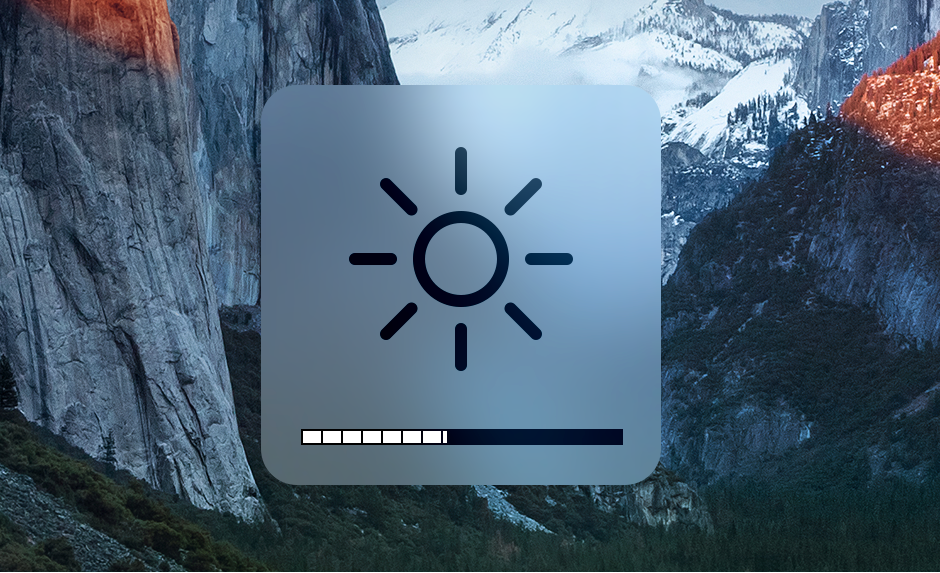
@SharkE, I believe the F14 and F15 keys are the ones preset to change brightness.
If you press either of them you should see, superimposed over the background, this wheel image and incremental bar at the bottom which will move to the right when you increase brightness and to the left when you decrease brightness.
11-12-2019 07:08 PM
Thank you very much will try !
11-16-2019 01:44 PM



Get sneak previews of special offers & upcoming events delivered to your inbox.
*You're signing up to receive QVC promotional email.

Find recent orders, do a return or exchange, create a Wish List & more.






Privacy StatementGeneral Terms of Use
QVC is not responsible for the availability, content, security, policies, or practices of the above referenced third-party linked sites nor liable for statements, claims, opinions, or representations contained therein. QVC's Privacy Statement does not apply to these third-party web sites.
© 1995-2026 QVC Group, Inc. All rights reserved. | QVC, Q and the Q logo are registered service marks of ER Marks, Inc. 888-345-5788
