






Stay in Touch
Get sneak previews of special offers & upcoming events delivered to your inbox.

Sign in
 Blogs & Forums
 Forums
 Blogs
Blogs

09-02-2020 05:01 PM
Thank you! I did not know what that double a was for. I touched the larger one and it fixed it for me!
09-02-2020 05:19 PM
@4kitties wrote:
Thank you! I did not know what that double a was for. I touched the larger one and it fixed it for me!
That's fabulous, @4kitties! You're welcome. I'm glad it was a helpful tip.😊
09-02-2020 10:46 PM
@dooBdoo wrote:
@Bridgegal, @4kitties, @meem120, In addition to the pinch-to-zoom feature, or going into our Community profile Preferences, there are other options.😊
I think this one might do the trick for the recent change to the appearance of the Q forum.
I noticed the Q site for some reason set the view to 85% on my iPad 6 and when I increased it to 100% it looked better.😊
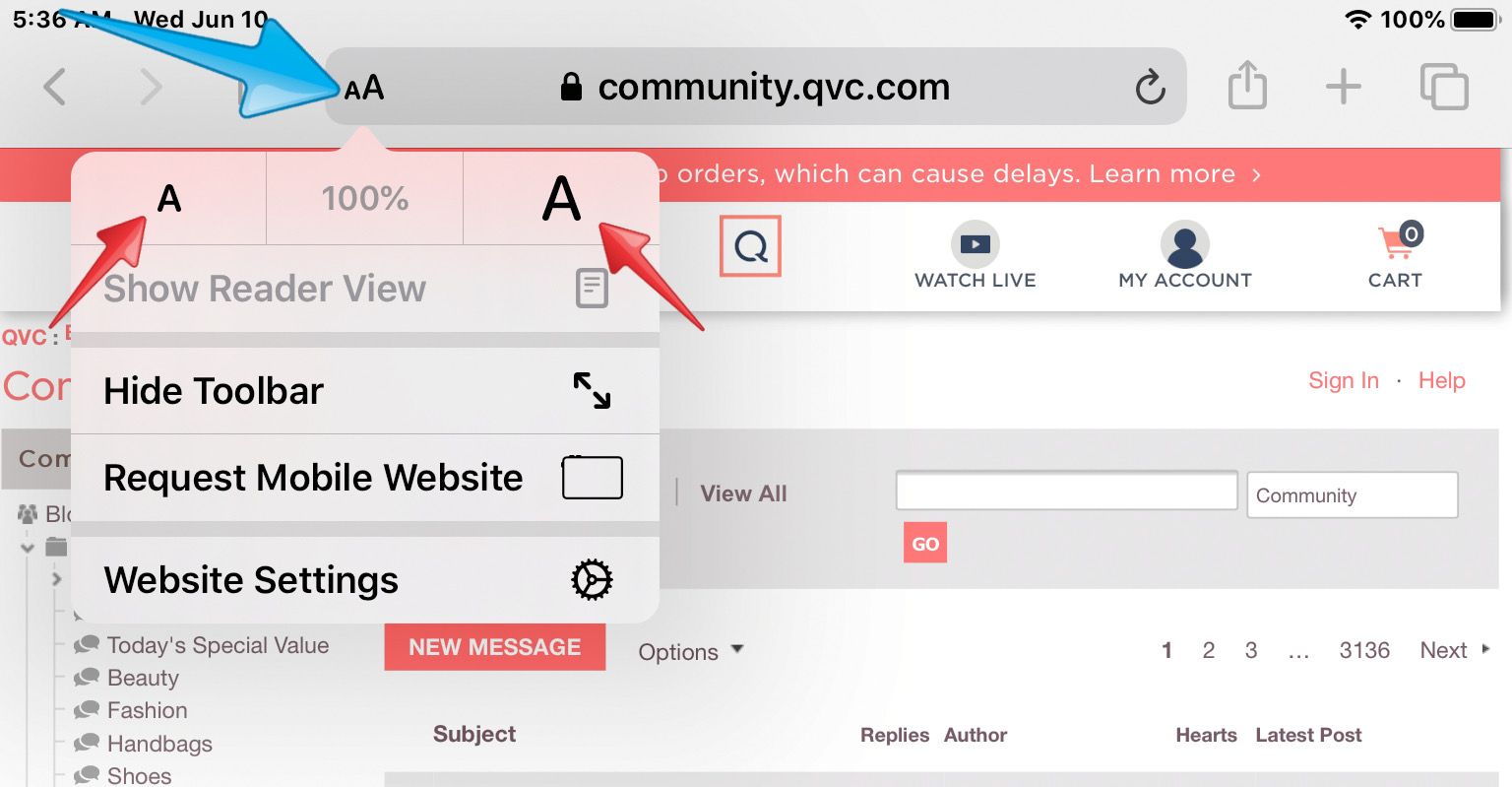
Tap the AA icon on the left side of the Safari address bar to display the view menu.
Then tap the large A on the right to increase the size or the small A on the left to decrease.
You can tap the percentage in the center to return to the default size:
Well thanks, but I use google chrome and the A's aren't there.
09-02-2020 11:07 PM
@Bridgegal wrote:
@dooBdoo wrote:
@Bridgegal, @4kitties, @meem120, In addition to the pinch-to-zoom feature, or going into our Community profile Preferences, there are other options.😊
I think this one might do the trick for the recent change to the appearance of the Q forum.
I noticed the Q site for some reason set the view to 85% on my iPad 6 and when I increased it to 100% it looked better.😊
Tap the AA icon on the left side of the Safari address bar to display the view menu.
Then tap the large A on the right to increase the size or the small A on the left to decrease.
You can tap the percentage in the center to return to the default size:
Well thanks, but I use google chrome and the A's aren't there.
You're welcome, @Bridgegal. I'm sorry you can't use this... but now that you mention you're using the Chrome browser I'll see if I can duplicate the problem and look for a fix. These glitches can be aggravating can't they.☹️
If I can find something useful I'll post it. Take care.🌻
09-02-2020 11:42 PM - edited 09-03-2020 08:09 AM
@Bridgegal, I looked at the Community with Safari vs. Chrome, on my iPad 6, iPadOS 13.7. So far the display is nearly identical. Maybe I'm doing something different, but this is my first look-see.😊
Does your display have a smaller font than these views?
Here's the main "Forums" display, first.
using Safari:
using Chrome:
~~~~~~~~~~~~~~~~~~~~
And this thread.
using Safari:
using Chrome:
09-03-2020 03:15 PM
On an iPad, you cannot go into Chrome's Preferences & increase the font size from there? You can do that with all the other browsers.
Sorry, I do not own any iOS devices to test.
"Never argue with a fool. Onlookers may not be able to tell the difference."
09-03-2020 05:04 PM
@hckynut wrote:
I used the 4 font for a long time. It gradually kept getting smaller and smaller. So! I switched to the 5. My feeling this is, I think most here would prefer as opposed to having it too small. So I use 5.
Well it works fine on my computer. Gonna check the tablet when I get on it.
hckynut
09-03-2020 11:18 PM
I really apppreciate you trying to help. Yes, that is what mine look like too. Notice at the top of the safari page there is the large A and small A. At the top of the Chrome page that is missing. Unless I just don't see it, Chrome doesn't appear to have any Font size options like Safari does.
The problem with Safari is that if I go to the large A, it's bigger but it cuts content off of the page. I can't see everything printed. I don't want that either so I'm just going to access QVC with chrome and pinch it out bigger.
Thanks again.
09-09-2020 04:30 PM - edited 09-09-2020 04:45 PM
Hi, @Bridgegal! You're welcome, although I wish I had better answers. I'm sorry to be slow to return... I had a few "down time" days, still not really up to speed. The images I posted earlier are examples of the way the Community normally looks on my iPad. With the exception of those few weeks when all of us saw the odd switch to a new look that appeared larger to some devices and smaller on others I haven't noticed a change.
You're right... and to answer @Mz iMac's question, too... as far as I can tell, the mobile Chrome app for our iPads doesn't offer us a font size adjustment. From looking at various websites, it appears that's a common complaint about the app -- in older versions some clever folks found a clunky manual code adjustment but evidently that no longer works.
As you said, on Safari if I go up to 115% or larger using the AA some of the page appears to be cut off, but I can move it slightly from side to side to see it all. Even so, it's certainly not a perfect solution.
In your OP you mentioned changing preferences didn't help.
The screen shots in my earlier post are with my Preferences-->Display-->Text Size set to "Large."
When I upped it to "X-Large" it did help somewhat, but not substantially.
(Just a reminder to anyone trying this adjustment -- it only takes effect when we're signed in, since it's customized to our personal settings.)
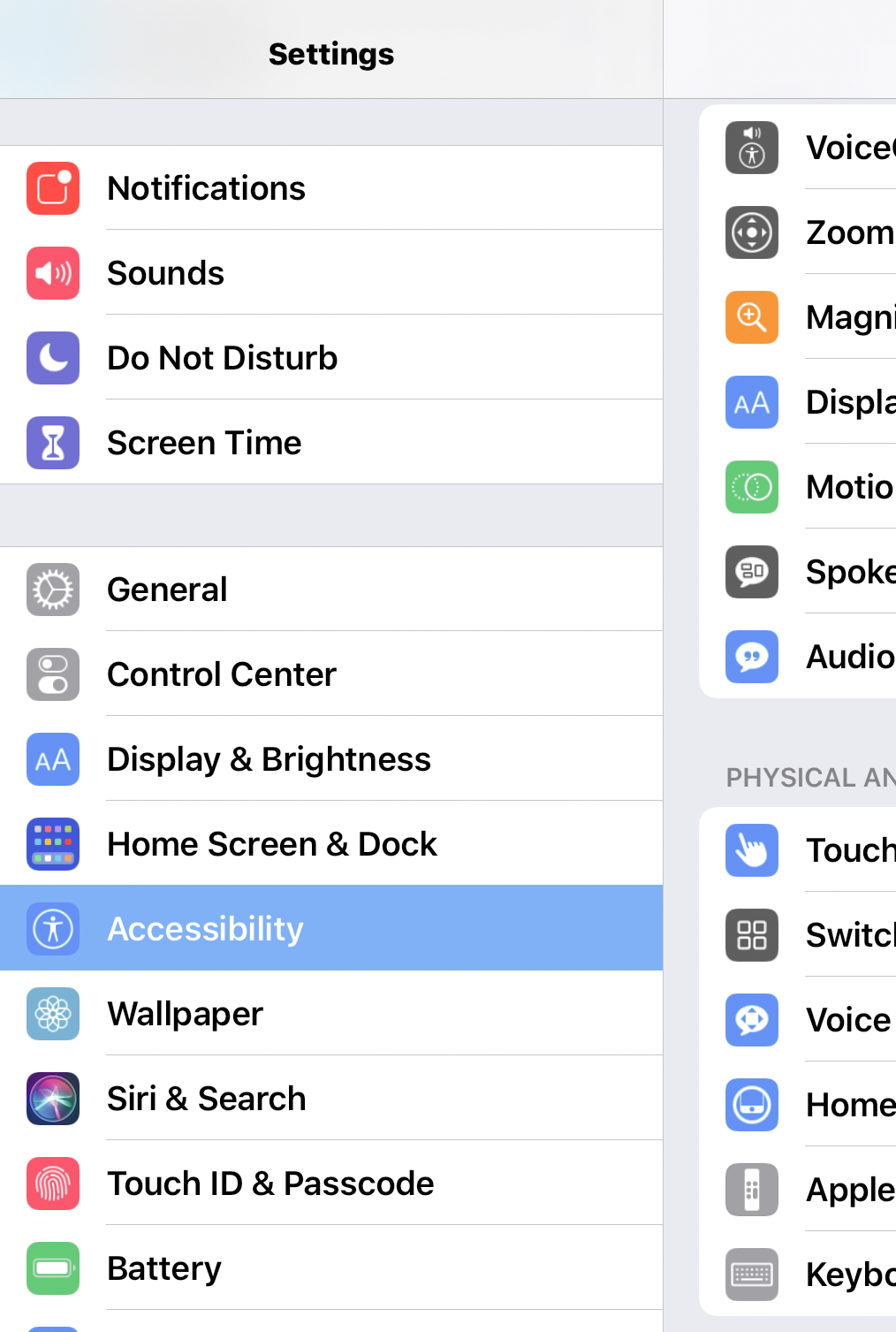
Another option is using "Accessibility" features in the Settings menu.
I've used the "Zoom" feature there, on my older iPad 3, to be able to double-tap with three fingers to zoom in and out on websites that didn't allow the pinch-to-zoom.
The "Display & Text Size" are useful, too.
There are numerous choices... I find it best to take time and try them out, one-by-one, to see how they work. You also can read about each one on Apple's website user guide,
copy and paste this URL:
support.apple.com/guide/ipad/get-started-with-accessibility-features-ipad9a2465f9/13.0/ipados/13.0
or search for
"Get started with accessibility features on iPad"
Sorry to go on and on! Just trying to brainstorm in hopes something might be useful. I hope you'll find a solution that works well for you. Take care.🤗
09-14-2020 11:32 AM
Thanks so much for all of your great suggestions. I'll try them all. Sorry I'm late too. Apparently I haven't been on here since last Wed. when you posted. I think one reason i come here less and less is because it's become more
"high maintenance ".. Enlarging tiny print, clicking on a picture of something on the home page that I might be interested in and then having to scroll forever to find it, etc.
Anyway, thanks and off I go to try your suggestions.


Get sneak previews of special offers & upcoming events delivered to your inbox.
*You're signing up to receive QVC promotional email.

Find recent orders, do a return or exchange, create a Wish List & more.






Privacy StatementGeneral Terms of Use
QVC is not responsible for the availability, content, security, policies, or practices of the above referenced third-party linked sites nor liable for statements, claims, opinions, or representations contained therein. QVC's Privacy Statement does not apply to these third-party web sites.
© 1995-2026 QVC Group, Inc. All rights reserved. | QVC, Q and the Q logo are registered service marks of ER Marks, Inc. 888-345-5788
